Configure grid map environment#
The grid map environment is a 2D grid-based environment that can be used to simulate various scenarios. It can be simply configured by specifying path of image file in the YAML configuration file.
Grid Map Configuration Parameters#
The python script and YAML configuration file for the grid map environment are shown below:
import irsim

env = irsim.make()

for i in range(1000):

    env.step()
    env.render(0.05)

    if env.done():
        break

env.end()
world:
  height: 50
  width: 50
  obstacle_map: 'cave.png'
  mdownsample: 2

robot:
  - kinematics: {name: 'acker'}
    shape: {name: 'rectangle', length: 4.6, width: 1.6, wheelbase: 3}
    state: [5, 5, 0, 0]
    goal: [40, 40, 0]
    vel_max: [4, 1]
    plot:
      show_trail: True
      traj_color: 'g'
      show_trajectory: True
      show_goal: False

    sensors:
      - name: 'lidar2d'
        range_min: 0
        range_max: 20
        angle_range: 3.14
        number: 100
        alpha: 0.4


obstacle:
  - number: 10
    distribution: {name: 'manual'}
    shape:
      - {name: 'polygon', random_shape: true, center_range: [5, 10, 40, 30], avg_radius_range: [0.5, 2]}
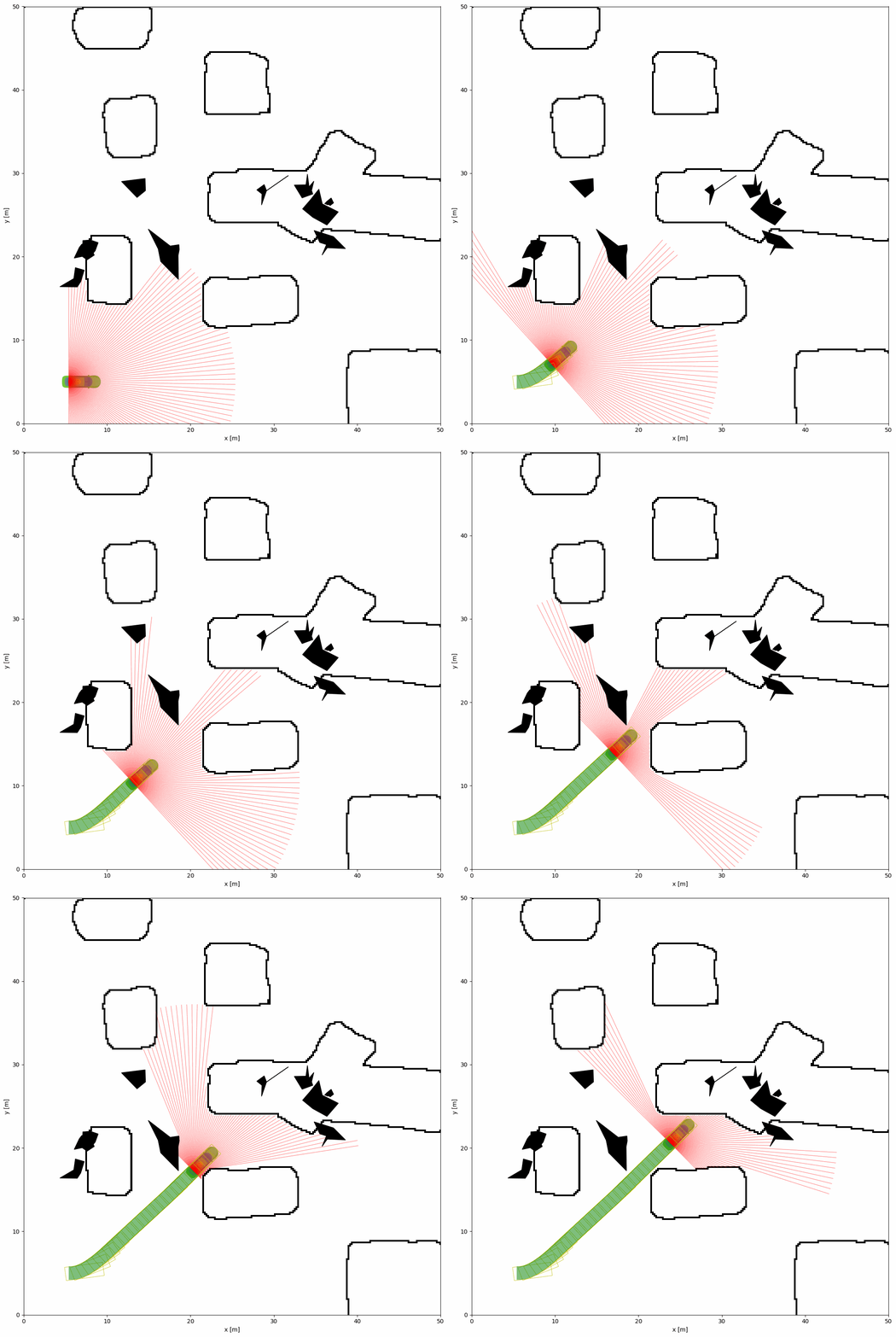
The demonstration is shown below:
Important Parameters Explained#
To configure the grid map environment, the obstacle_map in the world section should be specified. The mdownsample parameter is used to downsample the image for acceleration. The image of cave.png should be placed in the same directory as the python script, and is shown below:
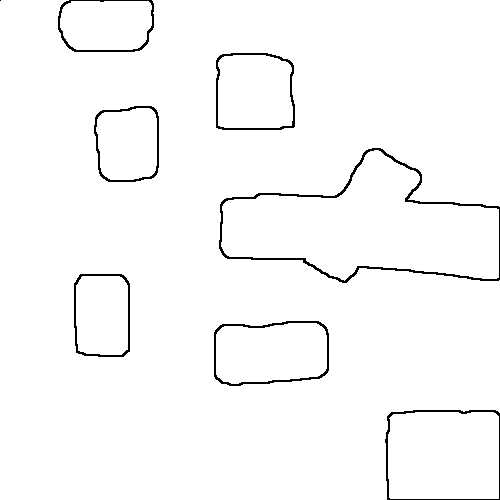
In the simulation, this png figure will be rasterized into a grid map. Black pixels represent obstacles, and white pixels represent free space.
Tip
You can use custom png images to create different grid map environments. The absolute or relative paths can be used to specify the image file in other directories.