Configure robots and obstacles#
To effectively simulate robots within your environment, you need to define and configure various robot parameters.
Robot Configuration Parameters#
Each robot in the simulation is defined by a set of parameters in a YAML configuration file. Below is a simple example of a robot configuration:
The python script and YAML configuration file:
import irsim

env = irsim.make('robot_world.yaml')

for i in range(1000):

    env.step()
    env.render(0.05)

    if env.done():
        break

env.end()
world:
  height: 10
  width: 10

robot:
  kinematics: {name: 'diff'}
  shape: {name: 'circle', radius: 0.2}
  state: [1, 1, 0]
  goal: [9, 9, 0]
  color: 'g'
  plot:
    show_trajectory: True
    show_goal: True
Important Parameters Explained#
kinematics: Defines the movement model of the robot. Name options include'omni','diff', and'acker'.'omni': Omnidirectional wheels allowing movement in all directions.'diff': Differential drive allowing movement forward/backward and rotation.'acker': Ackermann steering, typical for car-like robots.
shape: Specifies the physical shape and size of the robot. Name options include'circle','rectangle','polygon', andlinestring.circle: A circular robot with a specified radius.rectangle: A rectangular robot with specified length and width.polygon: A polygonal robot.linestring: list of lines.
state: Defines the initial position and orientation of the robot in the environment.goal: Specifies the target position and orientation for the robot.plot(optional): Specifies the visualization settings for the robot. See object.plot for more details.
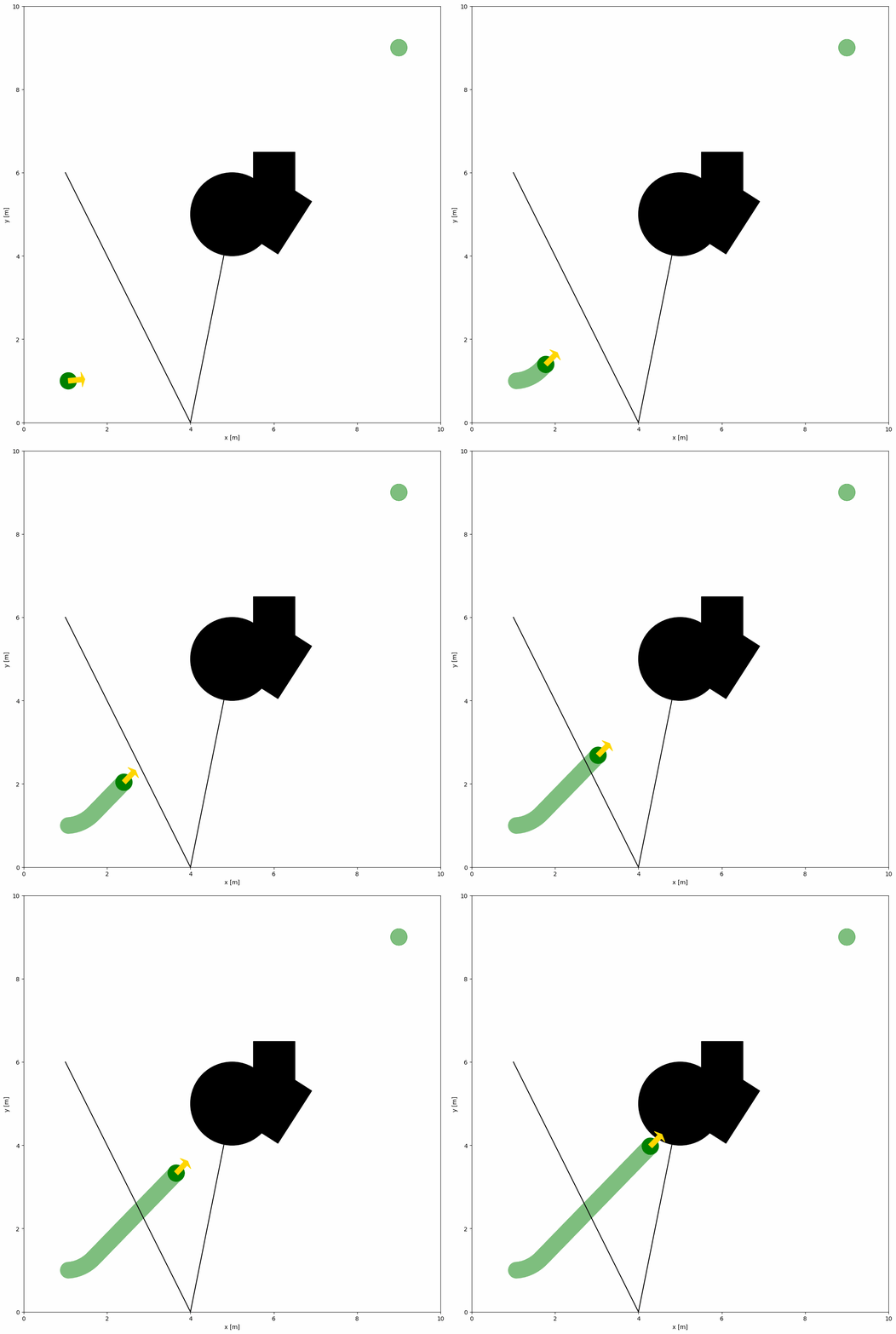
The robot has a default behavior of moving from its initial position to the goal position directly (dash) if the kinematics is set.
Explanation#
env.step(): Advances the simulation by one time step. You can input your control commands here byenv.step(velocity)to run your own control algorithm.velocityis associated with thekinematicsof the robot. See env.step for more details.env.render(0.05): Renders the current state of the environment with a 0.05-second delay between frames. See env.render for more details.env.done(): Checks whether the simulation conditions to terminate have been met. Such as reaching the goal or a collision. See env.done for more details.env.end(): Ensures that the simulation is terminated gracefully, releasing any resources or handles. Provides a clean exit. See env.end for more details.
Note
The rda_planner is a case of using the env.step(velocity) to run your own control algorithm.
Note
You can add Gaussian noise on the kinematics of the robot and obstacle by setting the noise to be True in parameter in the kinematics dictionary. See kinematics for more details.
Obstacle Configuration Parameters#
The parameters of obstacles in the simulation are similar to those of robots. Below is an example of adding various obstacles to the yaml configuration file, and run the same python script as above.
world:
  height: 10
  width: 10

robot:
  kinematics: {name: 'diff'}
  shape: {name: 'circle', radius: 0.2}
  state: [1, 1, 0]
  goal: [9, 9, 0]
  color: 'g'
  plot:
    show_trajectory: True
    show_goal: True

obstacle:
  - shape: {name: 'circle', radius: 1.0}  # radius
    state: [5, 5, 0]

  - shape: {name: 'rectangle', length: 1.5, width: 1.2}  # length, width
    state: [6, 5, 1]

  - shape: {name: 'linestring', vertices: [[5, 5], [4, 0], [1, 6]] }  # vertices
    state: [0, 0, 0]
    unobstructed: True

  - shape:
      name: 'polygon'
      vertices:
        - [4.5, 4.5]
        - [5.5, 4.5]
        - [5.5, 5.5]
        - [4.5, 5.5]
The demonstration of the robots and obstacles in the simulation are shown below:
Important Parameters Explained#
unobstructed: If
True, there is no collision detection with the object.
Note
The main difference between the robot and obstacle configurations is the default values. For example, default color of the obstacles is black.
Because the
kinematicsof the obstacle is not defined, the obstacle will be stationary during the simulation.Start with
-to define a new obstacle.
Warning
Please make sure that the obstacles are not placed in the initial position of the robot. Otherwise, the robot will collide with the obstacles at the beginning of the simulation.
Advanced Configurations for Multiple Robots and Obstacles#
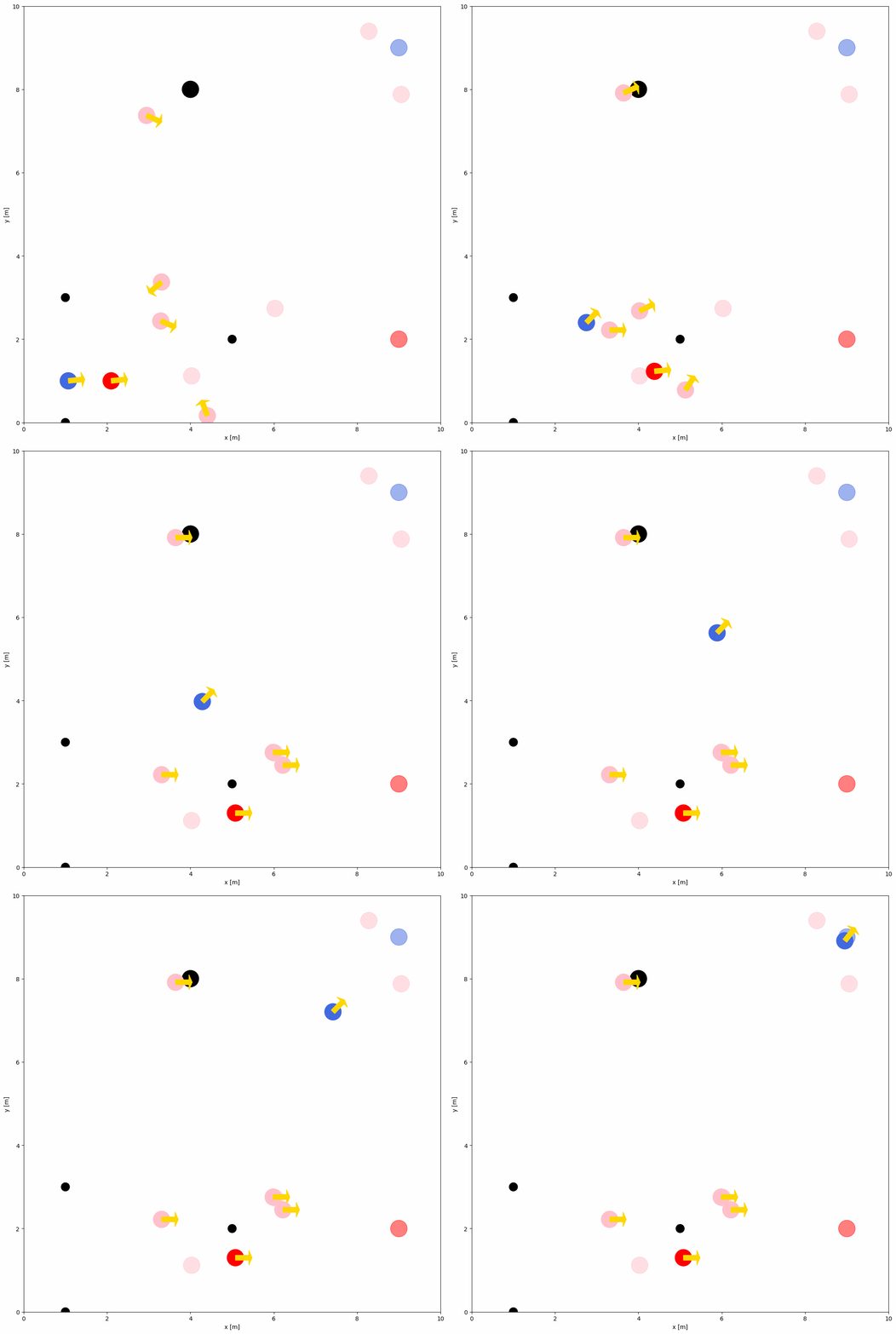
To simulate multiple robots and obstacles within the same environment, simply add the number and distribution of robots and obstacles to the configuration file. Below is an example of a configuration file with multiple robots and obstacles:
world:
  height: 10  # the height of the world
  width: 10   # the width of the world

robot:
  - number: 2
    distribution: {name: 'manual'}
    kinematics: {name: 'diff'}
    shape:
      - {name: 'circle', radius: 0.2}  # radius
    state:
      - [1, 1, 0]
      - [2, 1, 0]
    goal:
      - [9, 9, 0]
      - [9, 2, 0]
    color:
      - 'royalblue'
      - 'red'

  - number: 4
    distribution: {name: 'random'}
    kinematics: {name: 'diff'}
    shape:
      - {name: 'circle', radius: 0.2}  # radius
    color:
      - 'pink'


obstacle:
  - number: 4
    distribution: {name: 'manual'}
    state: [[4, 8], [1, 3], [1, 0], [5, 2]]
    shape:
      - {name: 'circle', radius: 0.2}  # radius
      - {name: 'circle', radius: 0.1}  # radius
    color: 'k'
The demonstration of the multiple robots and obstacles in the simulation are shown below:
Note
The
distributionparameter specifies how the robots and obstacles are distributed within the environment. Options include'manual'and'random'. Details are provided in the YAML Configuration