Render and Save Animation#
Render the environment#
You can render the environment by calling the env.render() function and change the arguments of this function to control the rendering of each frame. The main parameters are:
interval: The time interval between frames. Default 0.05. This parameter is used to control the speed of visualization.figure_kwargs: The parameters of the figures. Such as the transparent, bbox_inches, dpi, etc. Default {}. See savefig for more details.kwargs: These additional parameters are passed to the all the object.plot function for default settings.
Save the animation as GIF file#
You can save the animation of the simulation as a gif file very easily by setting the save_ani to True in the make() function:
env = irsim.make(save_ani=True)

for i in range(300):

    env.step()
    env.render(0.05)

    if env.done():
        break

env.end(ending_time=3)
world:
  height: 10  # the height of the world
  width: 10   # the width of the world
  step_time: 0.1  # 10Hz calculate each step
  sample_time: 0.1  # 10 Hz for render and data extraction
  offset: [0, 0] # the offset of the world on x and y
  collision_mode: 'stop'  # 'stop', 'unobstructed', 'unobstructed_obstacles'
  control_mode: 'auto'  # 'keyboard', 'auto'
  plot:
    show_title: False

plot:
  no_axis: False

robot:
  - kinematics: {name: 'diff'}  # omni, diff, acker
    shape: {name: 'circle', radius: 0.2}  # radius
    # shape: {name: 'rectangle', length: 0.5, width: 0.2}  # radius
    state: [1, 1, 0]
    goal: [9, 4, 0]
    # acce: [3, .inf]   # acce of [linear, angular]  or [v_x, v_y] or [linear, steer]
    behavior: {name: 'dash'} # move toward to the goal directly

  - kinematics: {name: 'diff'}  # omni, diff, acker
    shape: {name: 'circle', radius: 0.2}  # radius
    # shape: {name: 'rectangle', length: 0.5, width: 0.2}  # radius
    state: [5, 1, 0]
    goal: [2, 6, 0]
    # acce: [3, .inf]   # acce of [linear, angular]  or [v_x, v_y] or [linear, steer]
    behavior: {name: 'dash'} # move toward to the goal directly
    color: 'royalblue'
    plot: {show_trajectory: True, show_trail: True, trail_fill: True, trail_alpha: 0.2}


obstacle:
  - number: 10
    distribution: {name: 'manual'}
    shape:
      - {name: 'circle', radius: 1.5}  # radius
      - {name: 'circle', radius: 1.0}  # radius

    state: [[20, 34], [31, 38], [10, 20], [41, 25], [20, 13], [16, 26], [10, 24], [18, 20], [16, 26], [19, 26], [10, 30]]
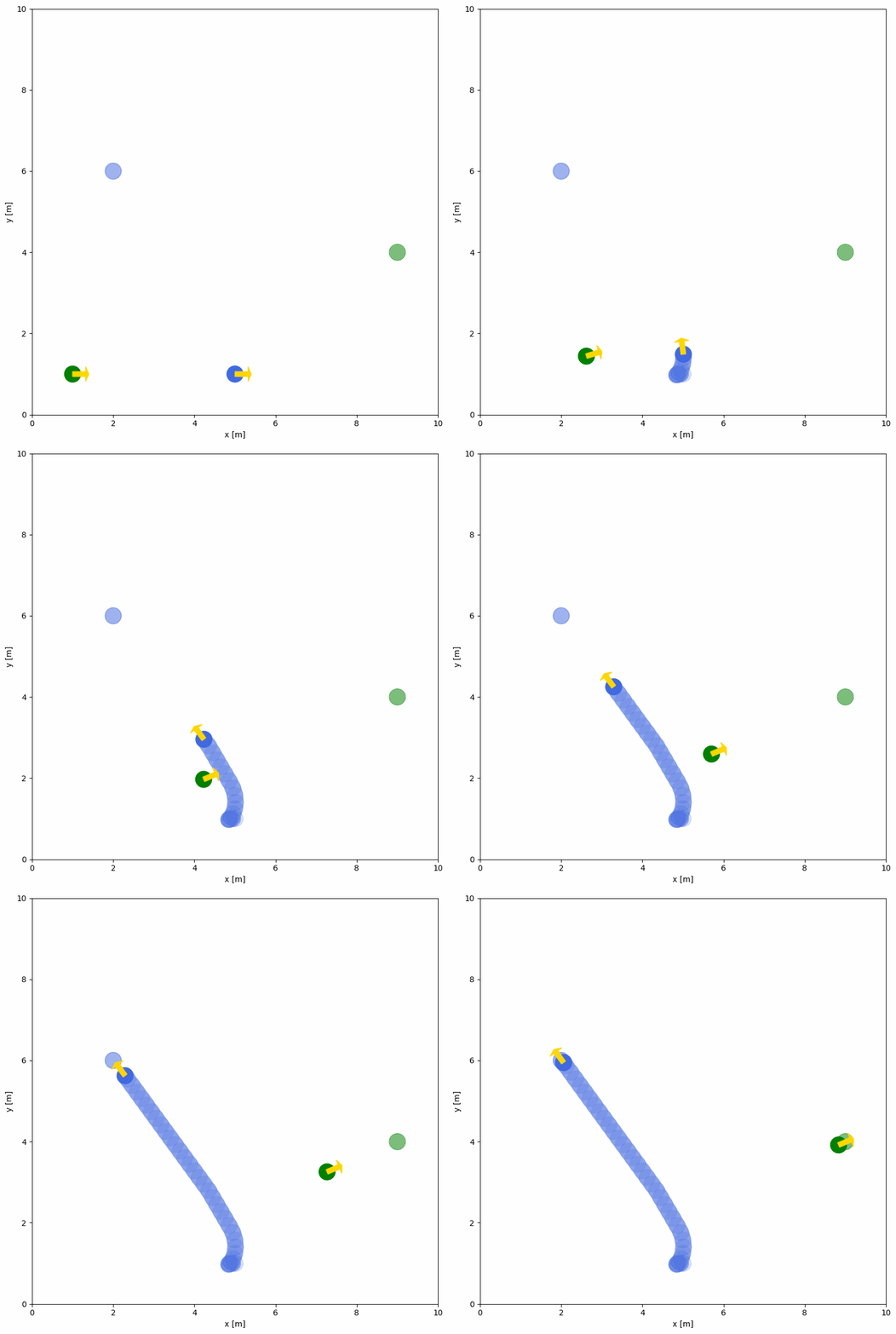
ending_time denotes how long the figure will be closed. The animation generation is also performed in this env.end() function. You can set the additional arguments in this function to control the animation generation. Details of the parameters can be found in the env.end().
Some common parameters for GIF format you may use are:
loop: The number of times the GIF should loop. Default 0 (meaning loop indefinitely).duration: The duration (in seconds) of each frame. Either specify one value that is used for all frames, or one value for each frame.fps: The number of frames per second. If duration is not given, the duration for each frame is set to 1/fps. Default 10.subrectangles: If True, will try and optimize the GIF by storing only the rectangular parts of each frame that change with respect to the previous. Default True.
Tip
The principle of the animation generation is to save the images of each frame and then combine them into a gif file.
Save the animation as a video#
You can save the animation of the simulation as a video file such as mp4 file by setting the suffix of the file to .mp4 in the env.end() function. Please make sure you have the ffmpeg installed in your system by pip install imageio[ffmpeg]. The example is shown below:
env = irsim.make(save_ani=True)

for i in range(300):

    env.step()
    env.render(0.05)

    if env.done():
        break

env.end(ending_time=3, suffix='.mp4')
Tip
More suffix for the animation file format can be found on imageio docs
3D Plot#
You can simply set the projection parameter to 3d in irsim.make function to render the 3D plot of the simulation. The example is shown below:
env = irsim.make(projection='3d')

for i in range(300):

    env.step()
    env.render(0.05)

    if env.done():
        break

env.end(3)
world:
  height: 10  # the height of the world
  width: 10   # the width of the world
  step_time: 0.1  # 10Hz calculate each step
  sample_time: 0.1  # 10 Hz for render and data extraction
  offset: [0, 0] # the offset of the world on x and y
  plot:
    show_title: False

robot:
  kinematics: {name: 'diff'}  # omni, diff, acker
  shape: {name: 'circle', radius: 0.2}  # radius
  # shape: {name: 'rectangle', length: 0.3, width: 1.0}
  state: [1, 1, 0]
  goal: [9, 9, 0]
  # acce: [3, .inf]   # acce of [linear, angular]  or [v_x, v_y] or [linear, steer]
  behavior: {name: 'dash'} # move toward to the goal directly
  color: 'g'
  plot:
    show_trajectory: True
    show_trail: True
  # description: 'diff_robot0.png'

  sensors:
      - name: 'lidar2d'
        range_min: 0
        range_max: 5
        angle_range: 3.14 #  4.7123
        number: 200
        noise: False
        std: 0.2
        angle_std: 0.2
        alpha: 0.3
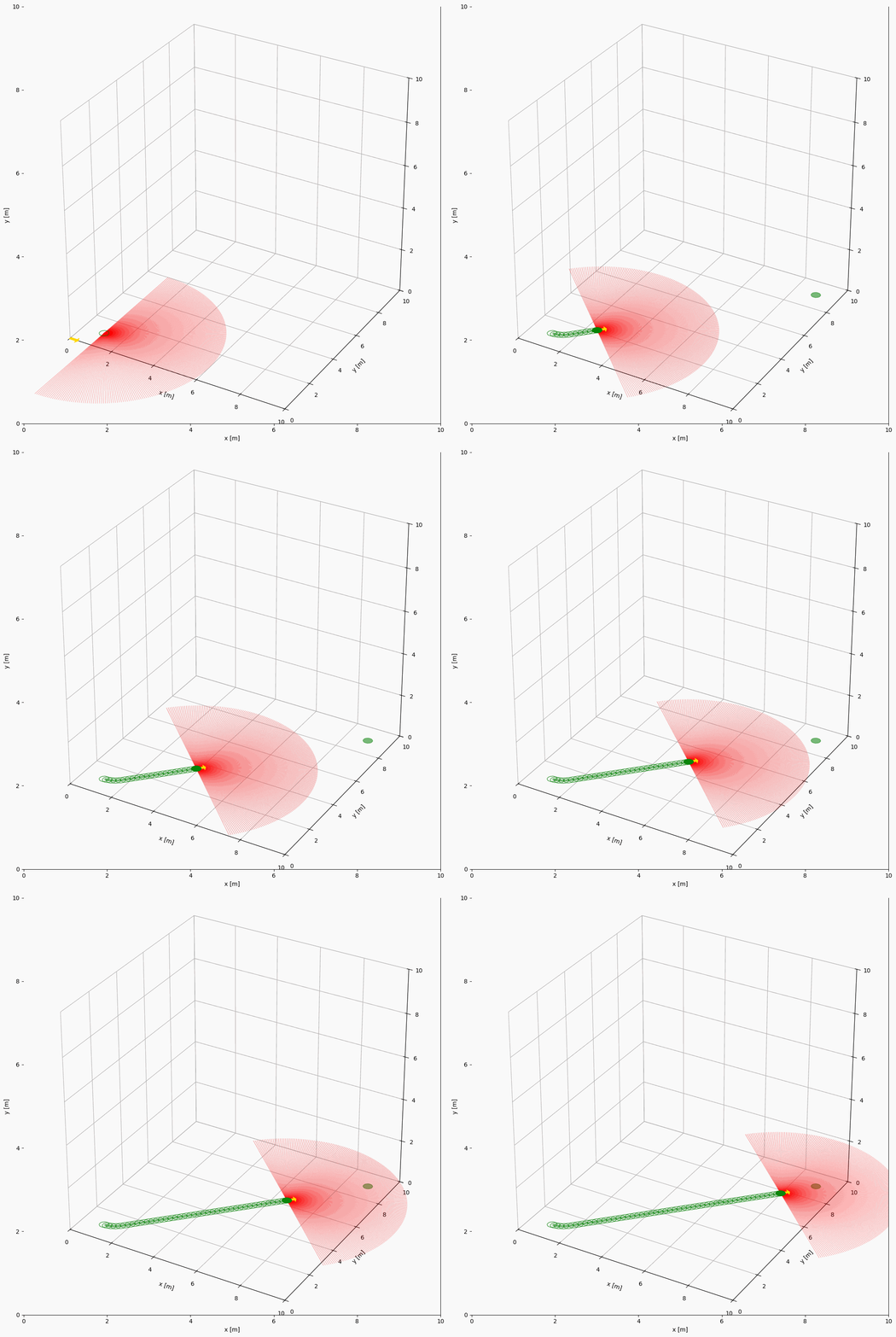
Note
Currently, the 3D plot only visualizes the 2D objects in the 3D space. The 3D objects are not supported yet.