Configure keyboard/Mouse control#
IR-SIM supports reading the keyboard and mouse input to control the robot manually.
Keyboard Control Configuration Parameters#
In the keyboard control mode, the behavior of the robot is controlled by the user and the settings in the YAML file will be ignored. By default IR-SIM uses the pynput global keyboard hook. If pynput is unavailable, IR-SIM automatically falls back to the Matplotlib figure key events backend. You can install pynput with:
pip install pynput
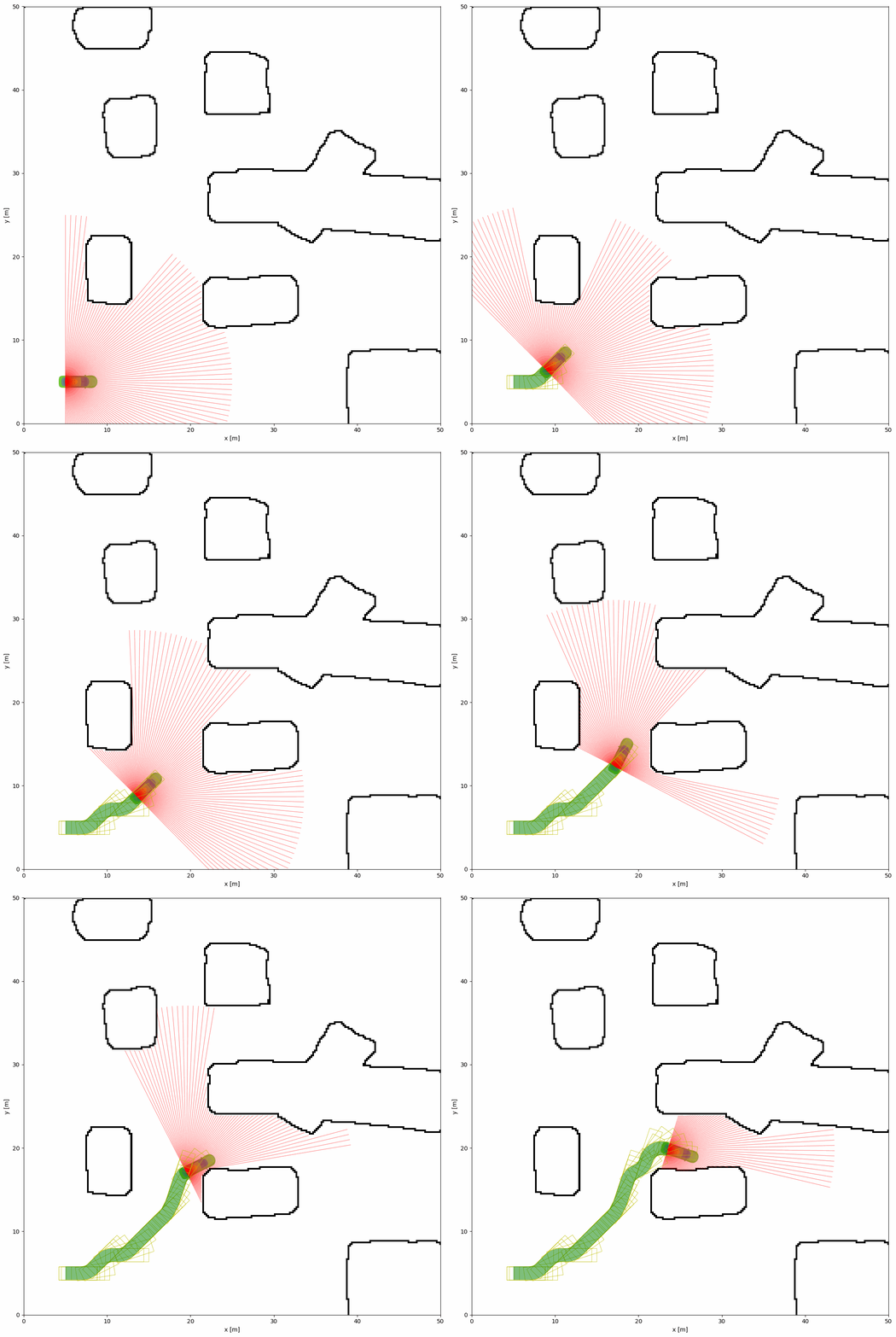
To start with the keyboard control, you can simply to specify the control_mode parameter in the world section as keyboard. The example of the keyboard control is shown below:
import irsim

env = irsim.make()

for i in range(1000):

    env.step()
    env.render(0.05)

    if env.done():
        break

env.end()
world:
  height: 50
  width: 50
  control_mode: 'keyboard'
  obstacle_map: 'cave.png'
  mdownsample: 2

robot:
  - kinematics: {name: 'acker'}
    shape: {name: 'rectangle', length: 4.6, width: 1.6, wheelbase: 3}
    state: [5, 5, 0, 0]
    goal: [40, 40, 0]
    vel_max: [4, 1]
    plot:
      show_trail: True
      traj_color: 'g'
      show_trajectory: True
      show_goal: False

    sensors:
      - name: 'lidar2d'
        range_min: 0
        range_max: 20
        angle_range: 3.14
        number: 100
        alpha: 0.4
Keyboard Control Key Mapping#
Key |
Function |
|---|---|
|
Forward |
|
Backward |
|
Turn Left |
|
Turn Right |
|
Decrease Linear Velocity |
|
Increase Linear Velocity |
|
Decrease Angular Velocity |
|
Increase Angular Velocity |
|
Change Current Control Robot ID |
|
Reset the Environment |
|
Toggle Pause/Resume Environment |
|
Quit the Environment (sets quit flag) |
|
Switch Keyboard/Auto Control |
|
Reload the Environment |
|
Debug the Environment (fn+f5 for mac) |
|
Save the current figure |
Environment Status Control#
The space key toggles between “Pause” and “Running” based on the current state. If the environment hasn’t entered Running yet, the first press may set it to “Running”.
You can access the current environment status through the env.status attribute:
import irsim

env = irsim.make()

for i in range(1000):
    env.step()
    env.render(0.05)

    # Check current status
    print(f"Environment status: {env.status}")

    if env.done():
        break

env.end()
Select Keyboard Backend (pynput vs Matplotlib)#
Default backend:
pynput(global keyboard hook, but works when the Matplotlib window is focused). If not installed, IR-SIM automatically falls back tompl.Alternative backend:
mpl(Matplotlib figure key events). Works when the figure window is focused; no extra package required.
Add a keyboard section at the root of the YAML to configure the backend and key parameters:
world:
  control_mode: 'keyboard'

gui:
  keyboard:
    backend: 'pynput'      # 'pynput' (default) or 'mpl'
    global_hook: true      # capture keys globally (may require OS permissions)
    key_id: 0              # initial robot control id
    # key_lv_max: 3.0      # maximum linear velocity
    # key_ang_max: 1.0     # maximum angular velocity
    # key_lv: 0.0          # initial linear velocity
    # key_ang: 0.0         # initial angular velocity
Mouse Control#
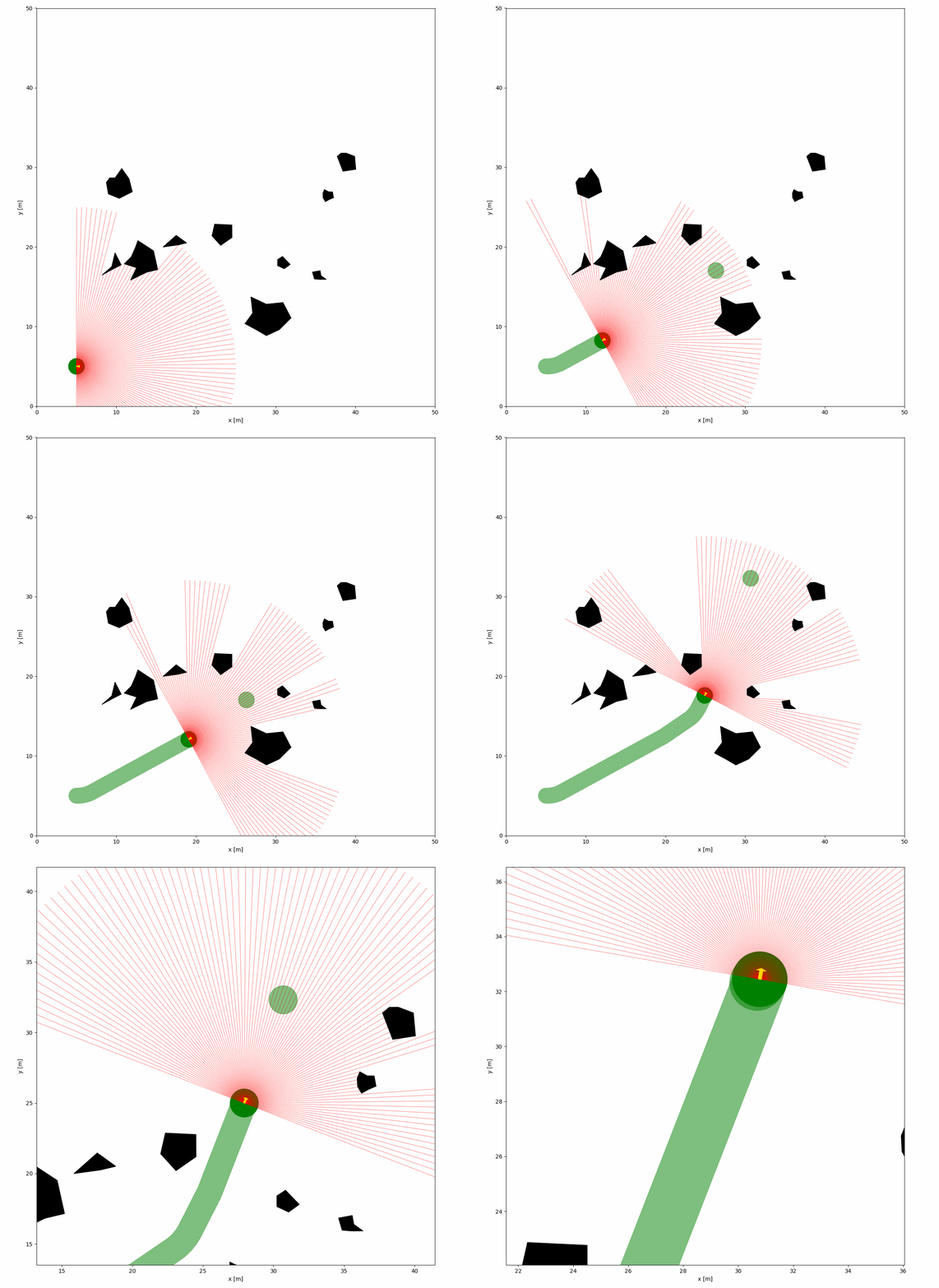
IR-SIM supports the mouse control to zoom in and out the environment and track the mouse position. The mouse control is enabled by default. For example, you can use mouse left click to set the goal of the robot.
import irsim

env = irsim.make()

for i in range(10000):
    env.step()
    env.render(0.05, show_goal=False)

    if env.mouse_left_pos is not None:
        env.robot.set_goal(env.mouse_left_pos)

    if env.done():
        break

env.end()
world:
  height: 50
  width: 50
  step_time: 0.1
  sample_time: 0.1
  offset: [0, 0]
  collision_mode: 'stop'
  control_mode: 'auto'
  plot:
    saved_figure:
      bbox_inches: null

robot:
  - kinematics: {name: 'diff'}
    shape: {name: 'circle', radius: 1}
    state: [5, 5, 0]
    vel_max: [4, 1]
    behavior: {name: 'dash'}
    plot:
      show_trajectory: True
      traj_color: 'g'
      show_goals: True

    sensors:
      - name: 'lidar2d'
        range_min: 0
        range_max: 20
        angle_range: 3.14
        number: 100
        noise: False
        std: 1
        angle_std: 0.2
        offset: [0, 0, 0]
        alpha: 0.4


obstacle:
  - number: 10
    distribution: {name: 'manual'}
    shape:
      - {name: 'polygon', random_shape: true, center_range: [5, 10, 40, 30], avg_radius_range: [0.5, 2]}
Mouse Control Key Mapping#
Mouse Action |
Function |
|---|---|
Mouse Movement |
Track mouse position and update display coordinates |
Middle Click |
Reset zoom to default view |
Scroll Up |
Zoom in (centered on mouse position) |
Scroll Down |
Zoom out (centered on mouse position) |
Mouse Position Attributes#
Attribute |
Type |
Description |
|---|---|---|
|
|
Position of left click (x, y) |
|
|
Position of right click (x, y) |
|
|
Current mouse position (x, y) |