Configure behavior for objects#
Each object in the simulation can be assigned a behavior independently to simulate different scenarios. The behavior of the object can be configured by specifying the behavior parameters in the YAML configuration file.
Behavior Configuration Parameters#
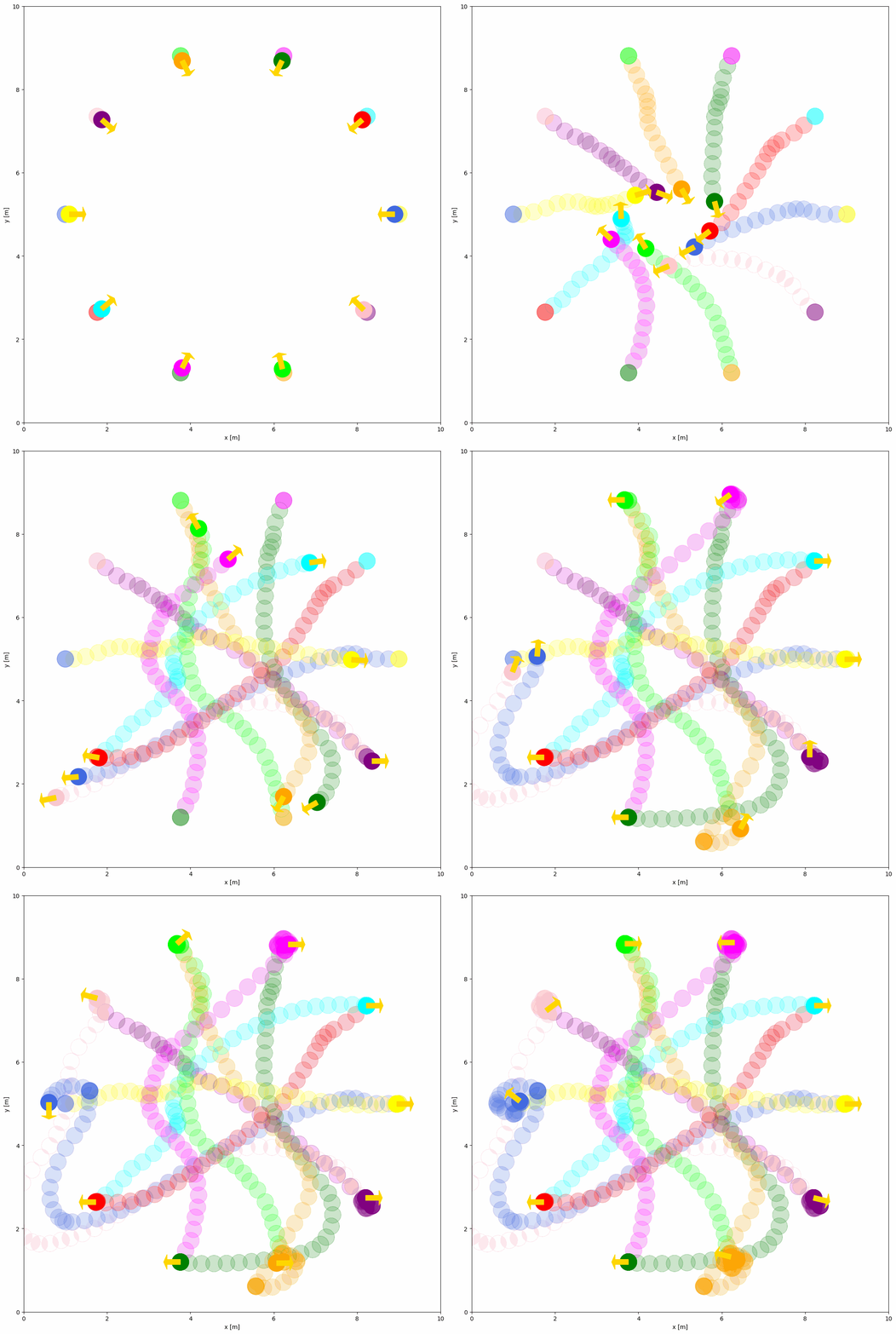
Currently, there are two built-in behaviors: dash and rvo. By default, the moving objects’ behavior is static, which means the object will not move. You can set the behavior of the object to dash or rvo in the YAML configuration file. The dash behavior is a simple behavior that moves the object from its initial position to the goal position directly. The rvo behavior is a dynamic collision avoidance algorithm for multiple agents. The example of this behavior is shown below:
python script:
import irsim

env = irsim.make()

for i in range(1000):

    env.step()
    env.render(0.05)

    if env.done():
        break

env.end()
YAML file:
world:
  height: 10  # the height of the world
  width: 10   # the width of the world

robot:
  - number: 10
    distribution: {name: 'circle', radius: 4.0, center: [5, 5]}
    kinematics: {name: 'diff'}
    shape:
      - {name: 'circle', radius: 0.2}
    behavior: {name: 'rvo', vxmax: 1.5, vymax: 1.5, accer: 1.0, factor: 1.0}
    vel_min: [-3, -3.0]
    vel_max: [3, 3.0]
    color: ['royalblue', 'red', 'green', 'orange', 'purple', 'yellow', 'cyan', 'magenta', 'lime', 'pink', 'brown']
    arrive_mode: position
    goal_threshold: 0.15
    plot:
      show_trail: true
      show_goal: true
      trail_fill: true
      trail_alpha: 0.2
      show_trajectory: false
The demonstration of the rvo behavior is shown in the following figure:
Important Behavior Parameters Explained#
name: The name of the behavior. The default behavior isdash. Thervobehavior is a local collision avoidance algorithm for multiple agents.vxmax: The maximum velocity in the x direction.vymax: The maximum velocity in the y direction.accer: The acceleration of the object.factor: The factor to adjust the collision penalty.
Full list of behavior parameters can be found in the YAML Configuration.
Advanced Configuration for Custom Behavior#
Custom Behavior Function#
If you want to create a custom behavior for the object, you should first define your own behavior in a custom python script (e.g. custom_behavior_methods.py) as shown below:
from irsim.lib import register_behavior
from irsim.util.util import relative_position, WrapToPi
import numpy as np

@register_behavior("diff", "dash_custom")
def beh_diff_dash(ego_object, objects, **kwargs):

    state = ego_object.state
    goal = ego_object.goal
    goal_threshold = ego_object.goal_threshold
    _, max_vel = ego_object.get_vel_range()
    angle_tolerance = kwargs.get("angle_tolerance", 0.1)

    behavior_vel = DiffDash2(state, goal, max_vel, goal_threshold, angle_tolerance)

    return behavior_vel


def DiffDash2(state, goal, max_vel, goal_threshold=0.1, angle_tolerance=0.2):

    distance, radian = relative_position(state, goal)

    if distance < goal_threshold:
        return np.zeros((2, 1))

    diff_radian = WrapToPi(radian - state[2, 0])
    linear = max_vel[0, 0] * np.cos(diff_radian)

    if abs(diff_radian) < angle_tolerance:
        angular = 0
    else:
        angular = max_vel[1, 0] * np.sign(diff_radian)

    return np.array([[linear], [angular]])
The ego_object is the object that you want to control, and the objects is the list of all objects in the simulation. The custom behavior function should return the velocity of the object. You can obtain the state, goal, and other properties from the objects. DiffDash2 is the custom behavior function that calculates the dash velocity of the object.
Important
You must use the @register_behavior decorator to register the custom behavior. The first argument of the decorator is the name of the kinematics (diff, acker, omni), and the second argument is the name of the behavior used in YAML file.
Register Behavior#
The python script to run the simulation with the custom behavior is shown below:
import irsim

env = irsim.make()
env.load_behavior("custom_behavior_methods")

for i in range(1000):

    env.step()
    env.render(0.01)

    if env.done():
        break

env.end(5)
load_behavior function loads the custom behavior methods from the python script. custom_behavior_methods is the name of the python script that contains the custom behavior function.
Note
Please place the script with the name custom_behavior_methods in the same directory as the main python script.
Run Custom Behavior in the simulation#
Now, you can use the custom behavior dash_custom in the YAML configuration file as shown below.
world:
  height: 10  # the height of the world
  width: 10   # the width of the world

robot:
  - number: 10
    distribution: {name: 'circle', radius: 4.0, center: [5, 5]}
    kinematics: {name: 'diff'}
    shape:
      - {name: 'circle', radius: 0.2}
    behavior: {name: 'dash_custom'}
    vel_min: [-3, -3.0]
    vel_max: [3, 3.0]
    color: ['royalblue', 'red', 'green', 'orange', 'purple', 'yellow', 'cyan', 'magenta', 'lime', 'pink', 'brown']
    arrive_mode: position
    goal_threshold: 0.15
    plot:
      show_trail: true
      show_goal: true
      trail_fill: true
      trail_alpha: 0.2
      show_trajectory: false
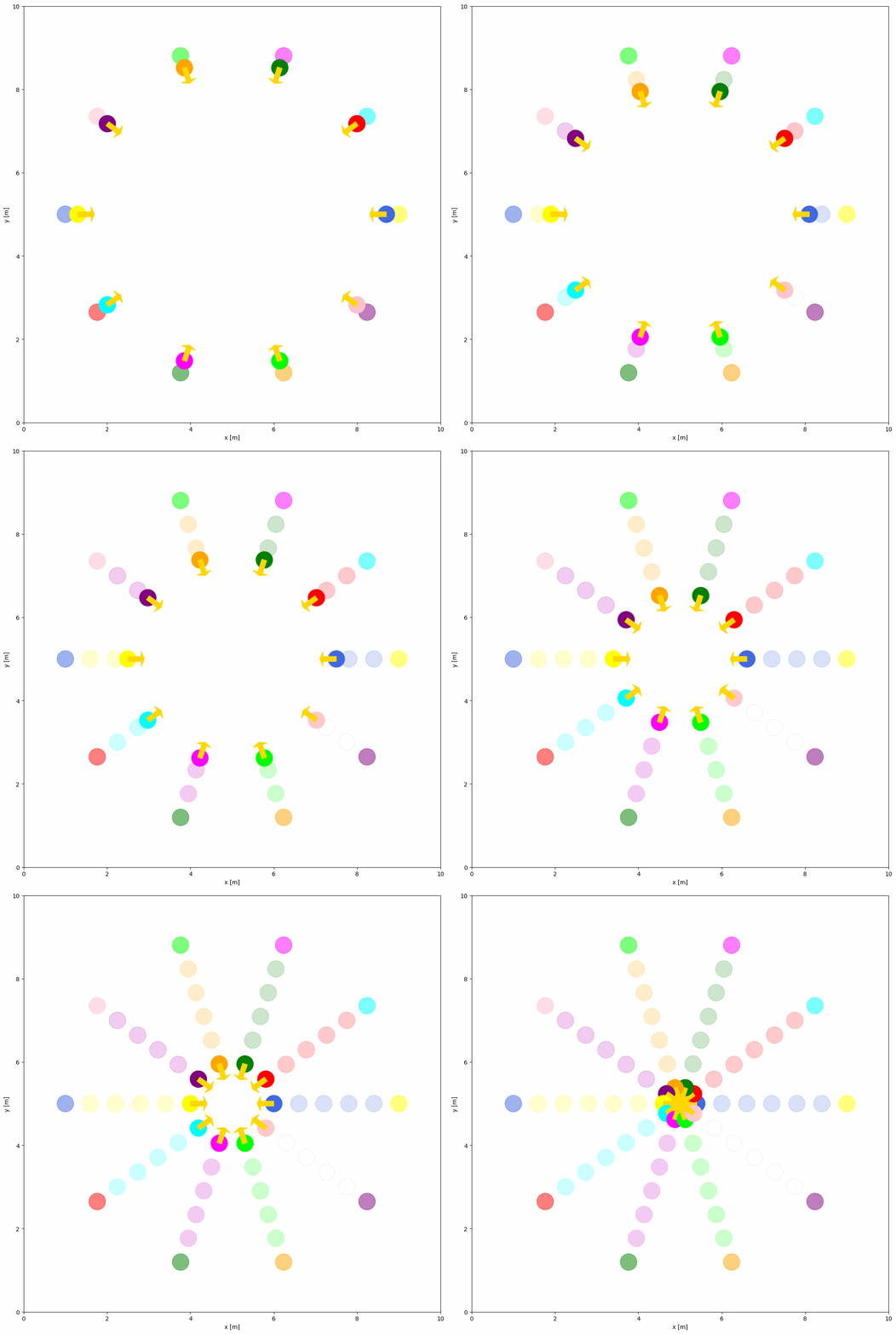
You will see the custom behavior in the simulation.