Configure keyboard control#
The keyboard control is a manual control method that allows you to control the robot using the keyboard. In this mode, the behavior of the robot is controlled by the user and the settings in the YAML file are ignored.
Keyboard Control Configuration Parameters#
Please make sure the dependencies are installed before running the simulation with keyboard. The dependencies can be installed using the following command:
pip install ir-sim[keyboard]
To start with the keyboard control, you can simply to specify the control_mode parameter in the world section as keyboard. The example of the keyboard control is shown below:
import irsim

env = irsim.make()

for i in range(1000):

    env.step()
    env.render(0.05)

    if env.done():
        break

env.end()
world:
  height: 50
  width: 50
  control_mode: 'keyboard'
  obstacle_map: 'cave.png'
  mdownsample: 2

robot:
  - kinematics: {name: 'acker'}
    shape: {name: 'rectangle', length: 4.6, width: 1.6, wheelbase: 3}
    state: [5, 5, 0, 0]
    goal: [40, 40, 0]
    vel_max: [4, 1]
    plot:
      show_trail: True
      traj_color: 'g'
      show_trajectory: True
      show_goal: False

    sensors:
      - type: 'lidar2d'
        range_min: 0
        range_max: 20
        angle_range: 3.14
        number: 100
        alpha: 0.4
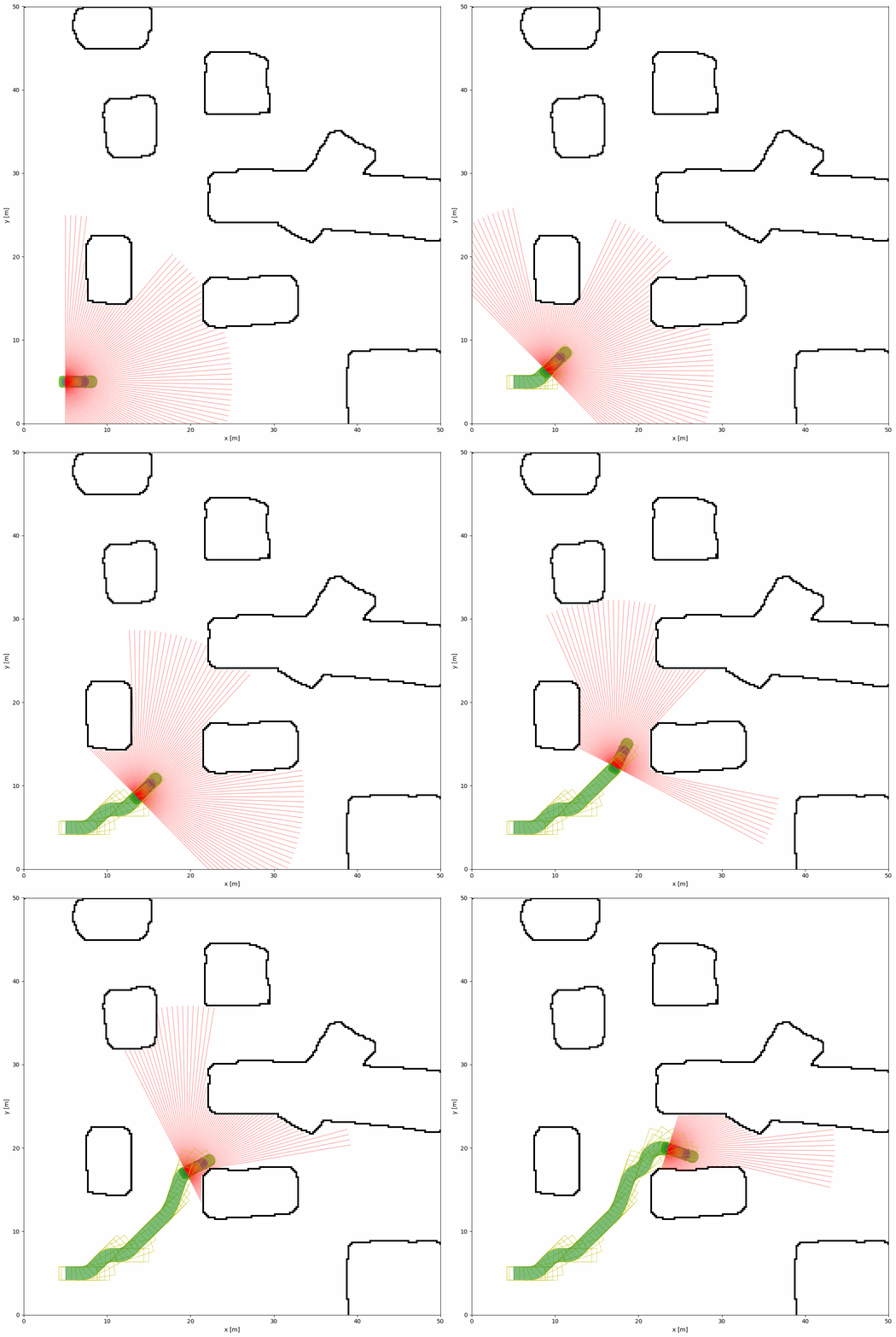
The demonstration controlled by the keyboard is shown below:
Keyboard Control Key Mapping#
Key |
Function |
|---|---|
|
Forward |
|
Back Forward |
|
Turn Left |
|
Turn Right |
|
Decrease Linear Velocity |
|
Increase Linear Velocity |
|
Decrease Angular Velocity |
|
Increase Angular Velocity |
|
Change Current Control Robot ID |
|
Reset the Environment |